Clemente Tech News – April 2002

Clemente Tech News | April 2002 | Volume 1 | Issue 2
A do-it-yourself kit
Teachers often ask what kinds of things they can do to fix their computers before calling in a technology assistant. “When I can’t print, what can I do before I call the technology department?” “My print is smudged; does my printer need to be cleaned?” New teachers received some basic maintenance tips at the beginning of the year, and some have found this information helpful:
Things to know about classroom computer maintenance
If the computer doesn’t come on, make sure it is plugged in, any available power strip is plugged in & turned on, and the computer is turned on with the switch on the back of the machine.
Please do not turn off computers from the back; use the “shut down” option to power down machines. Turning off from the back may cause the loss of critical settings.
Unless prompted, please do not attempt to switch or remove cables & other connections for the computers and/or printer.
Please immediately report any physical damage to computer(s) or printer(s), as well as missing and/or stolen equipment. Try to use a complaint form if available. (See sample on other side.)
To report a problem using the complaint forms, please be brief, but specific. For example, instead of “computer on left doesn’t work,” please indicate the computer/printer model (found on the front of the machine) & the symptoms, i.e. “LC580 does not print to Epson 740.” This helps the technology department better fill your technology needs.
Avoid placing any books, papers, and posters on, around, or between pieces of equipment. Doing so is a fire hazard.
Computer equipment must remain within seven feet of the Ethernet drops in your classroom.
From time to time the technology department has computers to be assigned for word processing and/or some student programs. To request additional computers at any time, submit a proposal (a brief request outlining the need for such computers in your classroom) and submit it to Ron Walker.
If you feel that your equipment should be removed due to excessive damage, repetitive misuse, or other reasons at your discretion, please notify the technology department in writing (preferably using a complaint form).
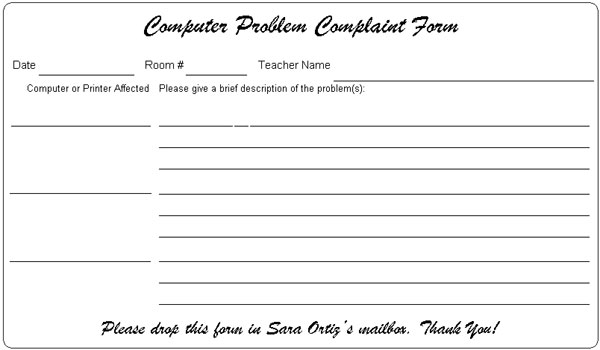
The technology department may also remove equipment if there is a pattern of damage or misuse, especially if it goes unreported. The teacher, however, shall be informed in advance that such a decision is imminent. In either case, computers may be returned to a classroom at a time mutually agreed upon by the teacher & the technology department.
From time to time, students may clean the computers by simply spraying regular cleaning solution onto a rag or paper towel (do not spray equipment) and wiping down the computers, printers, and other equipment in your room.
Just down and out?
New equipment is being ordered as often as possible through the technology department. As newer equipment makes its way into classrooms, older equipment is replaced and sometimes left in the room as word processing machines. These older Macs are good for word processing, basic classroom tasks, games, and printing banners or flyers.
If you have older equipment that is just not working anymore, let us know. Fill out a complaint form and indicate whether you would like the equipment removed or replaced. Older equipment that is beyond repair must be removed from classrooms. Please keep in mind that if you would like to have additional computers with these capabilities, write up a “mini-proposal” and submit it to Ron Walker.
The real deal on your e-mail account
by Sara Ortiz, Bldg. Rep
E-mail Usage
Though use of your Philadelphia School District account is not mandated, staff is encouraged to use an e-mail account for professional purposes. Administration needs to keep in touch with staff members, many times through electronic communication.
Staff members who have not used their School District accounts in the last few years might need to have their e-mail re-activated through the School District. Staff that does not use a School District account should provide a personal or free e-mail address for this purpose.
If you do not have a personal e-mail account, please notify Sara Ortiz. Remember that free e-mail accounts are available from places on the web like hotmail.com, yahoo.com, netscape.com and others.
Lost or forgotten passwords
If you have lost or forgotten your School District e-mail password, you must notify Gary Brookstein at 215-875-3740. The computer department cannot help members who have lost or forgotten this password. Gary is the only person who can help you in the event you need a new password set.
Accessing School District e-mail in Outlook Express/Eudora Light
Instructions for setting up your School District account in an e-mail client such as Outlook Express or Eudora Light are available from the computer department. Please see Sara for these instructions if you need help getting your account set up in either e-mail client.
Accessing mail through your free Yahoo!® Account
Staff members wishing to access their School District mail anywhere via a free Yahoo!® account may now do so! For more information about obtaining a Yahoo!® account and setting up your School District mail through that account, stay alert for upcoming staff development workshops on these topics!
© 2002-2004 Roberto Clemente Middle School
Please e-mail your feedback to our webmaster.
Ron Walker, Webmaster, Clemente School Internet Website
Bruce Stern, Webmaster, School Intranet Website
T Martin, Editor, Clemente Tech News
 Previous Post